Finding & Bookmarking Peloton Classes
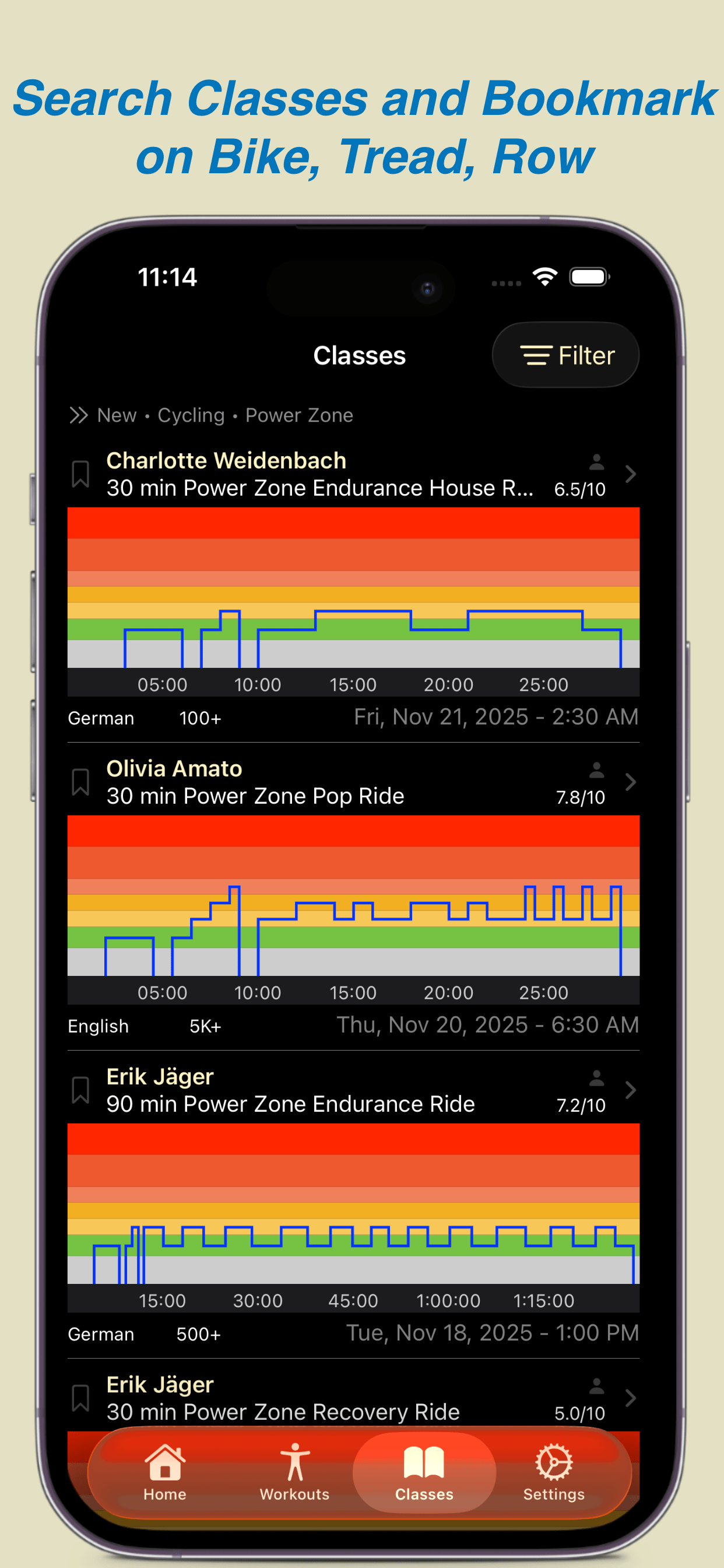
mPaceline Pulse makes it easy to find the right class for your next workout. One of the biggest advantages is the ability to browse classes by their structure. At a glance, the class graph shows you exactly how the ride is built—so you can quickly understand its overall difficulty based on the duration and frequency of higher-zone efforts.
You can also identify endurance-focused rides with shorter or longer intervals, depending on what your training calls for that day. This makes it simple to choose a class that aligns with your current training load and fitness goals, before you ever clip in.
Viewing Classes
Tap the Classes button in the bottom navigation bar. By default, all Power Zone classes are displayed, so you’ll immediately see a list of power zone class graphs.
To narrow your results, tap the ‘Filter’ icon in the top-right corner and choose from several available filter options.
Swipe up or down to browse additional classes that match your criteria. When you find one that looks right, tap on the class to view the full class detail screen.
Bookmarking Classes
Once you’ve found a class you want to take, you can create a Peloton bookmark. Bookmarking a class makes it easy to find later when you’re ready to start the workout on your Peloton equipment or in the Peloton App.
To bookmark a class, swipe left on the class row and select ‘Set Bookmark’. You can use the same gesture to remove a bookmark at any time. When a class is bookmarked, you’ll see a bookmark indicator highlighted to the left of the instructor and class title.
To view all of your bookmarked classes in mPaceline Pulse, open the filters and select ‘Bookmarked Only’. Keep in mind that any other active filters still apply—for example, if you’re viewing Cycling classes, you’ll only see bookmarked Cycling classes. The same behavior applies to duration, class type, and other filters.